Guides
How to find time to read
Most people who say they have no time to read do have a few minutes here and there. The trick is to notice them and to make picking up a book easier than picking up the phone. Here is how.
Updated
Coming soon · iPhone with iOS 17 or Android 8 and later
Notify me at launch
See where your time goes
Before looking for new time, look at the time you already have. For a few days, notice the moments when you reach for your phone with nothing particular to do: on the train, in a queue, after dinner. On iPhone, Screen Time in Settings shows how long you spend on your phone each day and in which apps; on Android, Digital Wellbeing shows the same.
You do not need to give up anything you enjoy. Pick one of those moments and swap it for a book.
Read in short pockets
A long, quiet evening with a book is rare. Ten minutes on the way to work, five minutes while the pasta cooks and fifteen before bed are not. They add up: fifteen minutes a day is about 90 hours a year, roughly a dozen average books. The guide on how many books you can read in a year does the maths for other numbers.
Short sessions are not second-rate reading. If you lose the thread, reread the last paragraph and carry on.
Keep a book within reach
You cannot read a book that is in another room. Keep one in your bag, one on your bedside table, and an ebook or audiobook on your phone for the moments when you have nothing else with you.
Tie reading to something you already do
A new habit sticks better when it follows an old one: morning coffee, the commute, lunch, the last minutes before you turn off the light. Choose one moment and read at that moment every day. The guide to building a daily reading habit goes into more detail.
Make starting easier than scrolling
The phone wins because it is always in your hand and asks nothing of you. Turn that around:
- Put the phone face down or out of reach while you read.
- Leave the book open at your page, or keep a bookmark in it, so starting takes one second.
- If you read on your phone, close everything else first.
Read books you want to read
A book you dread will not get the spare minutes; your phone will. If a book has stopped working for you, it is fine to put it down and pick another. More on that in the guide on when to stop reading a book.
Let Pagetime remove the friction
In Pagetime, “Continue” at the top of the library starts a reading session for the book where you left off, and the home screen widget opens the reading screen directly. The timer keeps running on the Lock Screen (on iPhone, also in the Dynamic Island), so you can put the phone down.
A “Time to read” reminder arrives at the time you choose, and Pagetime does not send its notifications while you are reading. Short sessions count: two sessions of ten minutes meet a 20-minute daily goal just as well as one session of twenty, and the Stats tab shows your reading time for each day of the week.
The free version holds up to 5 books and includes 20 page scans with text recognition in total. Deleting a note does not restore a used scan. Notes and the timer work offline without an account; sync is free after signing in. A subscription removes the book and scan limits and unlocks your full stats history, year in review and folder export. Pagetime is coming to iPhone and Android; you can leave your email below to hear when it is available. Until then, pick one moment for tomorrow and put a book there.
This independent guide is published by Pagetime and is not authorized, sponsored or endorsed by Apple Inc. or Google LLC.
Keep reading
How to build a daily reading habit
Make reading part of your day with a small daily goal, a fixed moment and a book within reach. Practical steps, plus how Pagetime tracks goals and streaks.
Read the guide
Is reading before bed good for sleep?
Reading is a popular way to wind down at night. What research says about books and screens before bed, and how to set up an evening reading routine with Pagetime.
Read the guide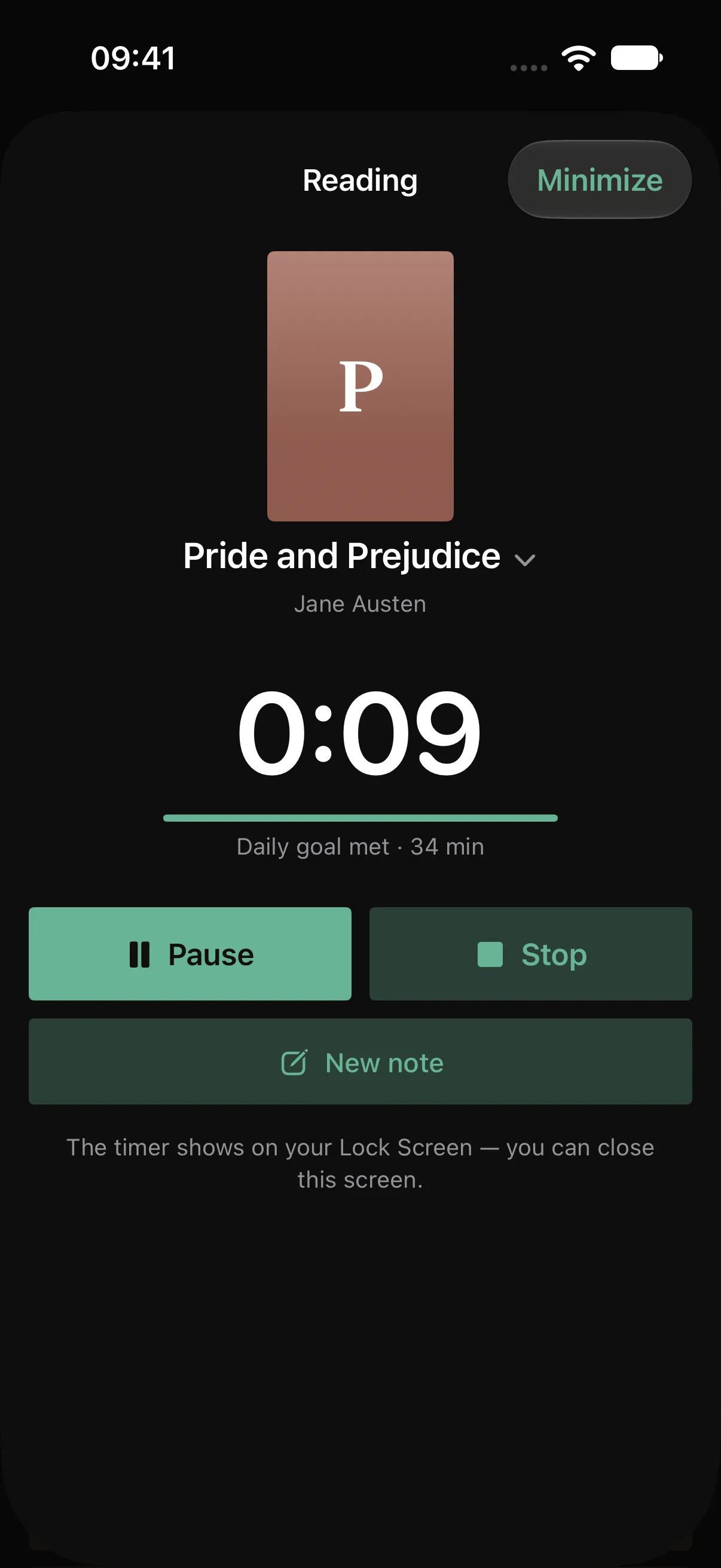
Reading sprints, explained
A reading sprint is a short, focused burst of reading with a timer. How long to make it, what to do before and after, sprinting with others and keeping count with Pagetime.
Read the guide