Guides
How to take notes while reading a book
Notes made while reading are easy to lose on a scrap of paper, in the margins or among hundreds of notes on your phone. Here is a simple way to write down thoughts as they come, keep them with their book and find them again.
Updated
Coming soon · iPhone with iOS 17 or Android 8 and later
Notify me at launch
Write it down right away, in a few words
A thought that comes while you read is gone a few pages later. You do not need a finished sentence: a few words and the page number are enough to come back to it. You can expand the note when you finish the chapter.
Keep something to write with next to the book: a pencil, a notebook or your phone.
Tell quotes, thoughts and ideas apart
Notes are easier to use when you know what kind they are:
- Quote. The author’s exact words. Copy them precisely and add the page.
- Thought. Your own reaction: agreement, doubt, a question, a link to another book.
- Idea. Something you want to take from the book and use: a method, a rule, a piece of advice.
You do different things with them later. You reread or share a quote, think a thought through and try an idea out. To copy a passage from a paper book with your phone, see how to save quotes from physical books.
Keep the book and page with every note
Write down the title, the author and the page in your copy. A chapter number helps too. A month later, a note without its source is hard to place, and a quote without a page is hard to check.
A finished note, and a pattern to copy
Here is a demonstration composed for this guide about chapter 5 of Pride and Prejudice. It is a reader’s interpretation, not Austen’s text or a real user’s note:
Book: Pride and Prejudice — Jane Austen
Location: chapter 5; page to check in my copy
Thought: I am taking Elizabeth’s side. On rereading, I want to separate what Darcy does from the way she responds to him.
Question: What would make me change my first impression?
You can put the thought and question together in one note. The labels above are a writing pattern, not additional fields in Pagetime. A location helps you return to the passage without needing a long summary.
For your next chapter, copy location · what I noticed · my question and fill in one sentence for each. After the chapter, reread the passage and add whether your view changed. A quotation should stay a separate, exact excerpt with its source; the quote guide shows a complete example.
Do not stop reading to take a note
If you time your reading, writing a note should not end the session. In Pagetime, the note button on the reading screen opens a sheet where you choose Thought, Quote or Idea, and the timer keeps running.
The note button sits next to pause and stop: on iPhone, on the Lock Screen and in the Dynamic Island; on Android, in the reading notification. It opens Pagetime straight to the note field, already linked to the book you are reading. Your phone does not allow typing on the lock screen, so you will need to unlock it.
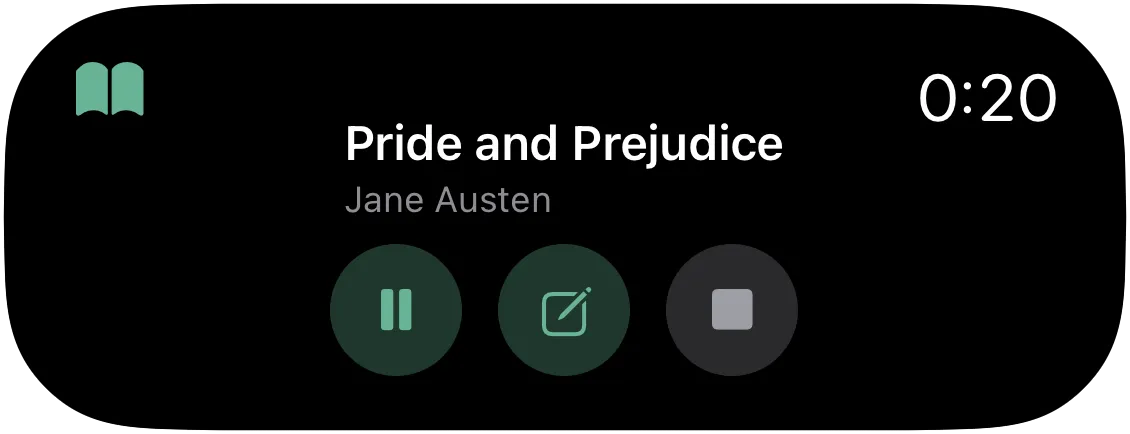
The note button is next to pause and stop.
For a quote, you can photograph the page or choose a screenshot from your photo library. Pagetime recognizes the text on your phone and fills it in, so you only need to check it.
Read your notes again
Go through your notes after a chapter or when you finish the book. Mark the best ones as favorites. Write a short summary of the book in your own words: what it was about and what you want to remember. In Pagetime, save it as a Thought about the book.
Pagetime can also bring back an old quote. Every two weeks, a notification reminds you of a quote you saved. Like any other notification type, you can turn it off. The guide on how to remember what you read has more ways to make a book stay with you.
Find a note later
The Notes tab collects notes from all your books. Filter by favorites or by kind of note, or search by the text of a note, the book title or the author.
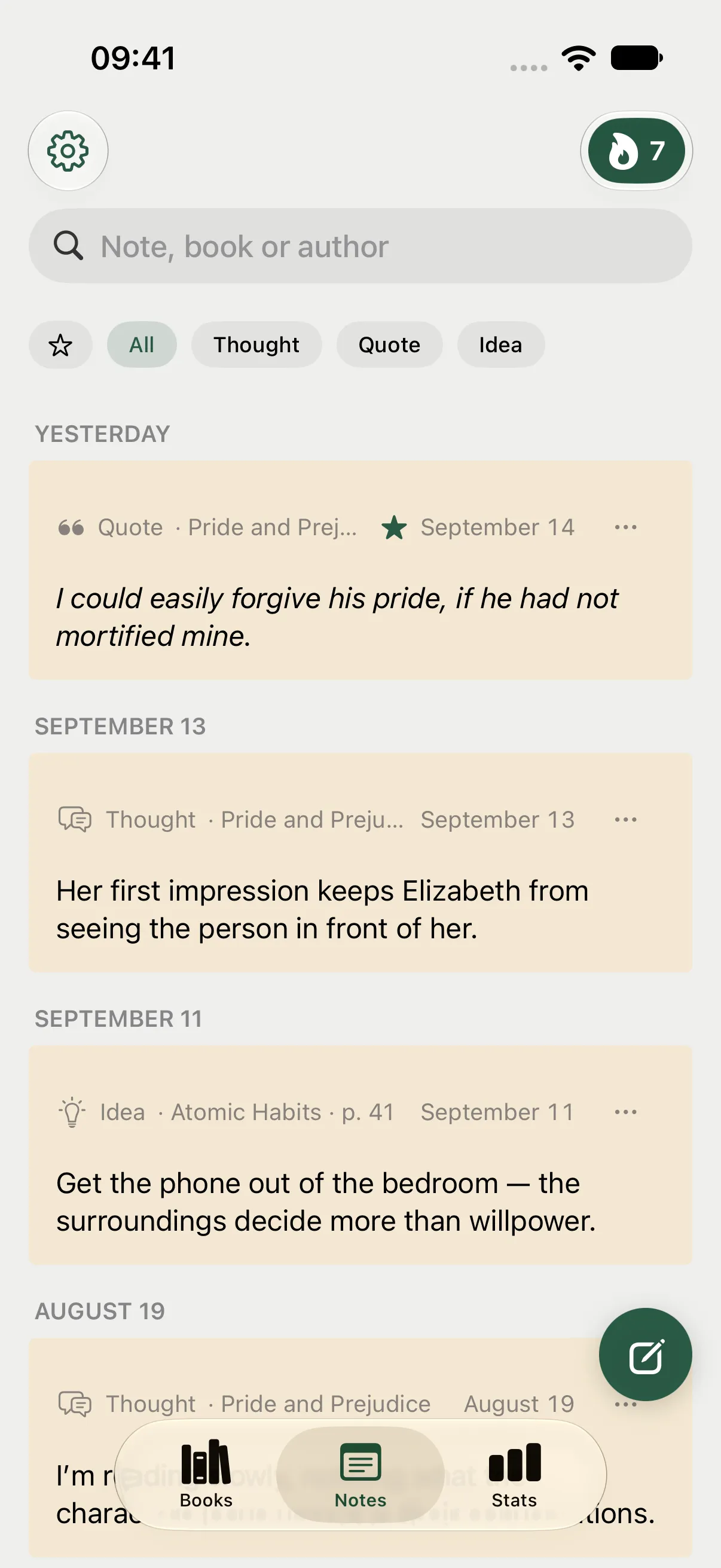
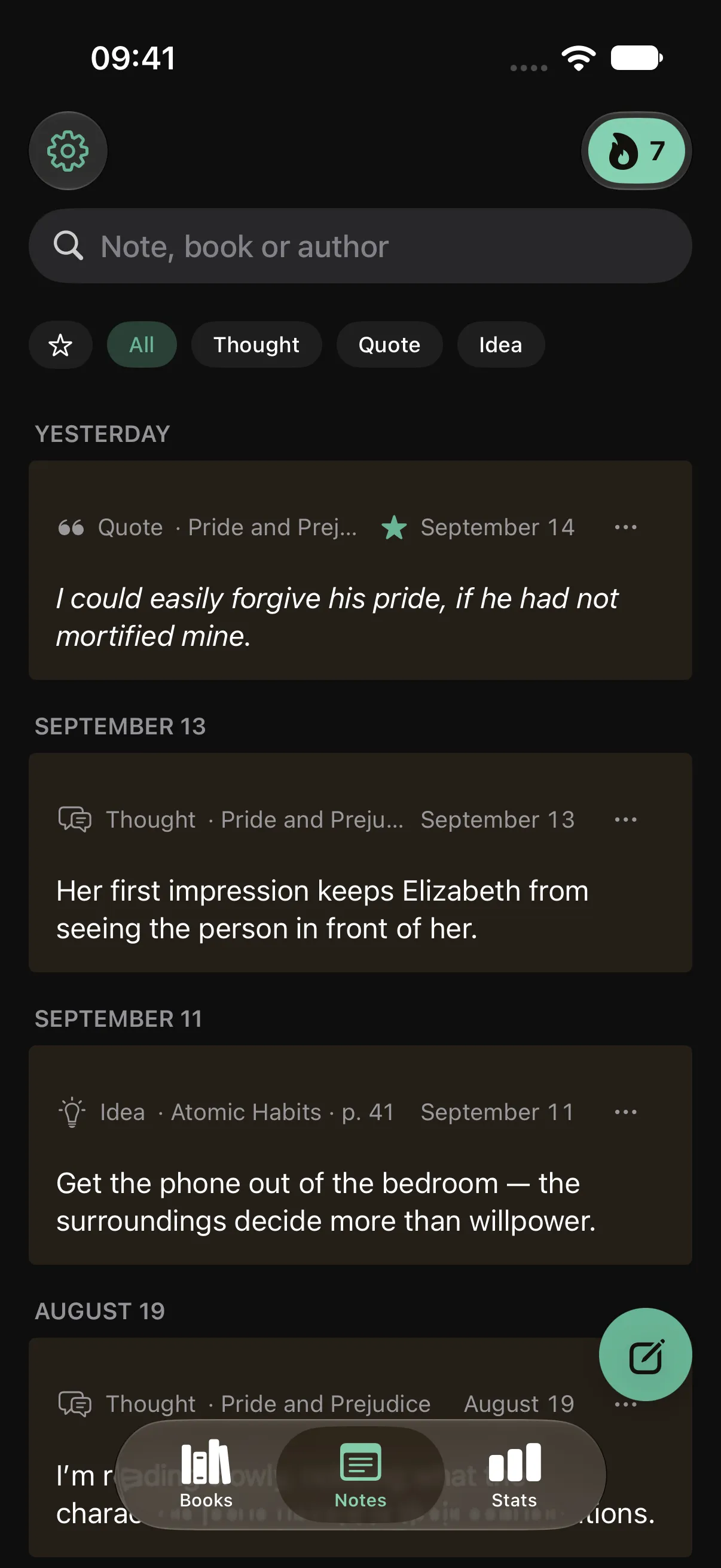
Notes from all your books in one list.
Take your notes with you
In settings, under “Your notes”, you can save all your notes as a single Markdown file, organized by book, with dates and pages. Photos of pages are not included. The file opens in any text editor or notes app, including Obsidian. No account or subscription is needed.
The free version holds up to 5 books and includes 20 page scans with text recognition in total. Deleting a note does not restore a used scan. Notes and the timer work offline without an account; sync is free after signing in. A subscription removes the book and scan limits and unlocks your full stats history, year in review and folder export. Pagetime is coming to iPhone and Android; you can leave your email below to hear when it is available. Until then, a pencil and the page number will do.
This independent guide is published by Pagetime and is not authorized, sponsored or endorsed by Apple Inc. or Google LLC.
Keep reading
How to save quotes from physical books on iPhone and Android
Save a passage from a paper book with your phone, keep its source and page number, and find it again. Steps for Live Text, Google Lens, Notes and Pagetime.
Read the guide
How to remember what you read
Most of a book fades within weeks. Recall it before you reread, write a few lines in your own words and come back to your notes later, with Pagetime on iPhone and Android.
Read the guide
How to start a reading journal
What to put in a reading journal, from a log of your books and ratings to quotes and a few lines at the end. On paper or on your phone, and what Pagetime fills in for you.
Read the guide