Guides
How to save quotes from physical books on iPhone and Android
A photo saves the page. Keeping the passage as text lets you search for it later and add a thought of your own. Here is a simple way to do both, with the book and page number attached.
Updated
Coming soon · iPhone with iOS 17 or Android 8 and later
Notify me at launch
Copy a passage with your phone
Start with the Camera, Photos and Notes apps on your iPhone:
- Photograph the page in even light, keeping the lines sharp and the page as flat as you can.
- Open the photo in Photos. Touch and hold a word, then move the selection handles to include the passage you want.
- Copy the selected text and paste it into a note.
- Compare it with the page. Check punctuation, names and words split across lines.
This uses Live Text. Apple lists iPhone XS, XR and later with iOS 15 or later as supported; language availability also matters. If you cannot select the words, check Apple’s Live Text instructions.
On Android, Google Lens selects text in a photo: open the photo in Google Photos, tap Lens, select the lines you need and copy them into a note. You can also type a short quote yourself.
Keep the book and page number
Save the title, author and page number alongside the quote. Use the page in your own copy: different editions can put the same passage on different pages. A chapter is useful too, especially when the book has no page numbers.
For example, the quote shown in Pagetime is:
I could easily forgive his pride, if he had not mortified mine.
It comes from Jane Austen’s Pride and Prejudice, chapter 5. The example leaves out a page number because it does not refer to a particular printed edition.
Before sharing a quote publicly, check the rights to the text and any translation, and the rules where you live. Crediting the author does not by itself give permission to publish.
Add your own thought separately
A short comment can explain why you kept the passage. For this quote, you might write: “Elizabeth notices his pride, but her own hurt also shapes her judgment.” This is a reader’s interpretation, separate from Austen’s words.
In Notes, put your comment under a clear label. In Pagetime, save it as a separate Thought attached to the same book and page. That keeps the quote intact and makes your response easy to recognize.
A source card you can reuse
Keep these lines alongside a passage in a notebook or notes app:
- Book and author: the title and name as printed in your copy.
- Location: page in your edition, or chapter if there is no stable page number.
- Quote: the exact passage, checked against the book.
- My thought: your response, kept separate from the quotation.
For the example above, the source is Pride and Prejudice, Jane Austen, chapter 5. Leave the page blank until you check your own edition. The sentence about Elizabeth’s judgment is a demonstration written for this guide, not another line from Austen. You can check chapter 5 in the English original on Project Gutenberg.
Before saving, compare the first and last words with the page and check that the scan has not joined two paragraphs. Later, try finding the note by a distinctive word from the passage. If it does not appear, check the saved text for recognition errors. See how to organize reading notes for keeping quotes and your own thoughts apart.
Save a quote in Pagetime
Pagetime is preparing to launch on iPhone and Android. Here is how the current app keeps a passage with its book:
- Add the book to your library and open it.
- Tap the round button with a pencil to create a note, then choose Quote.
- Paste your copied passage, or tap Photograph the page to use the camera. For a photo you already took, choose From Photos.
- After you add a photo, text recognition fills the field. Keep the passage you need and correct any mistakes. If Select text on photo is available, you can use it to choose a smaller fragment.
- Check the book below the text. Tap the page number, or add page, and enter the page containing the quote. A suggested number comes from your reading progress; it may need changing.
- Tap Save.
You can make a note during a reading session too. The timer keeps running while the note is open. The reading timer guide explains how to start and pause a session.
Find the quote again
Open Notes and search for a few words from the saved passage, the book title or the author. Choose the Quote filter to narrow the list. You can also open the book to see its notes together, or add a quote to your favorites to return to it later.
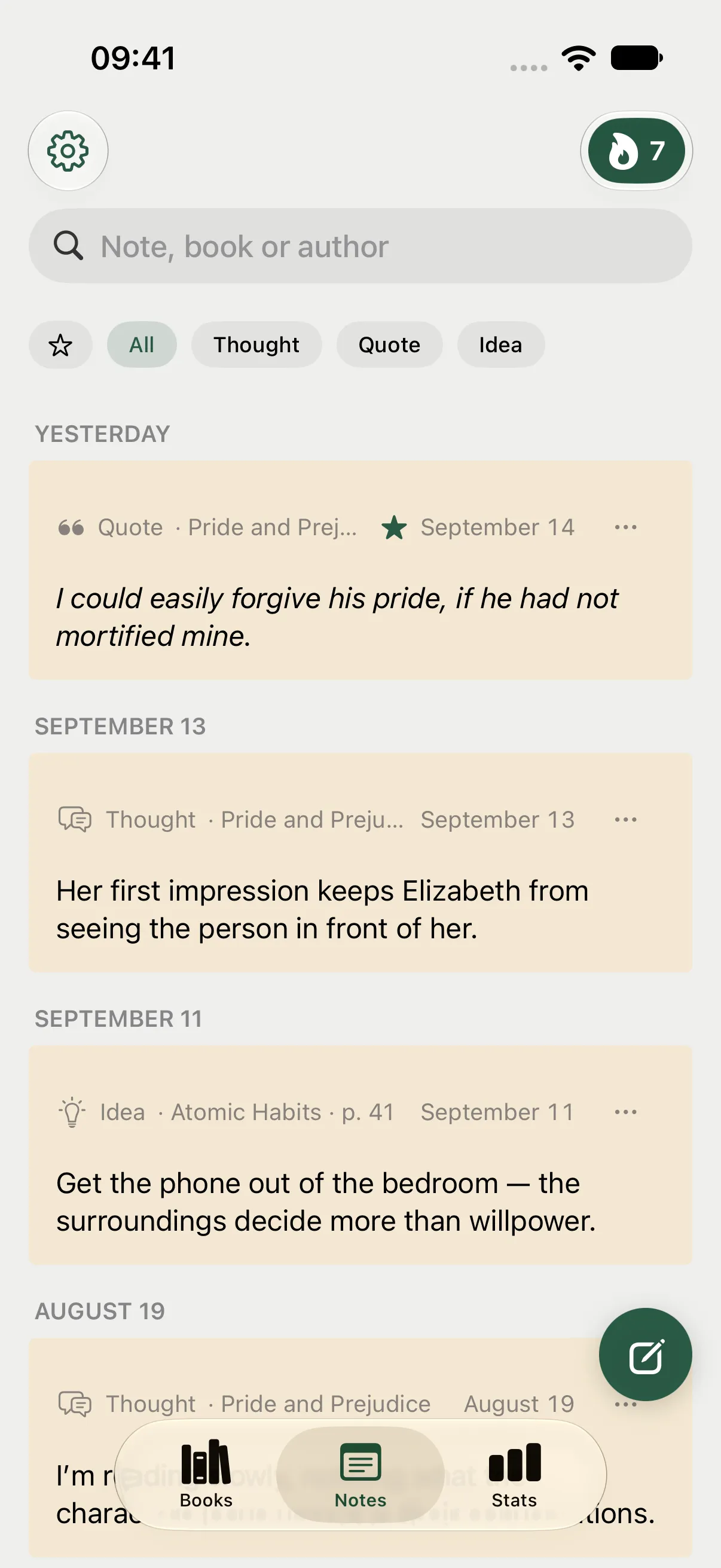
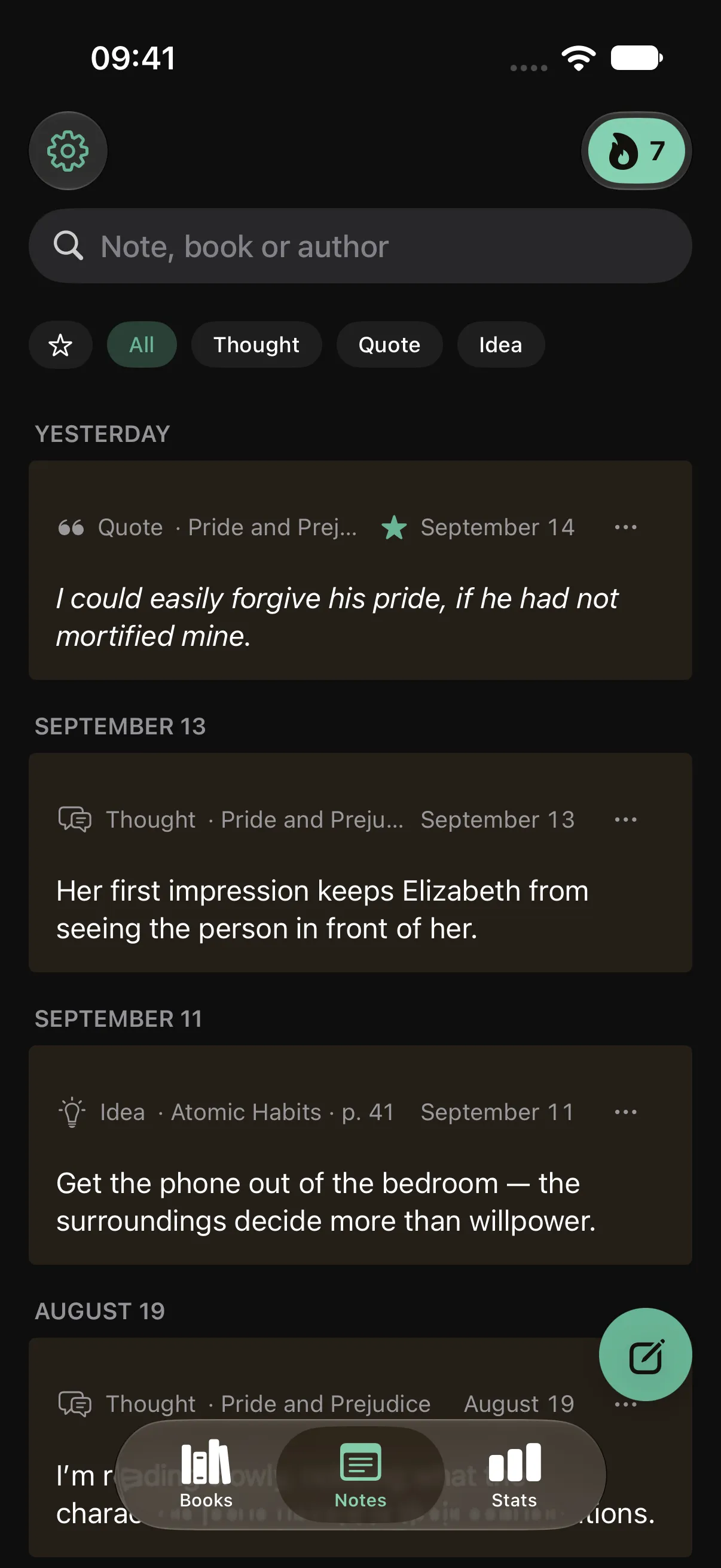
An example library: the quote and the reader’s thought are separate entries.
When the scan misses words
Try brighter, even light and keep shadows away from the page fold. Move the phone until the text is sharp. If a whole page produces too much text, keep just the passage you want in the note. Always check the result against the book before saving.
The free version holds up to 5 books and includes 20 page scans with text recognition in total. Deleting a note does not restore a used scan. Notes and the timer work offline without an account; sync is free after signing in. A subscription removes the book and scan limits and unlocks your full stats history, year in review and folder export.
After you sign in, the text of your notes syncs between your devices whenever you are online. Sync is free and needs no subscription.
You can leave your email below to hear when Pagetime launches. Until then, the same book, page, quote and thought can live in a note on your phone.
This independent guide is published by Pagetime and is not authorized, sponsored or endorsed by Apple Inc. or Google LLC.
Keep reading
How to take notes while reading a book
Keep thoughts and quotes from a book without losing your place. What to write down, how to sort your notes and how to find them later, with Pagetime on iPhone and Android.
Read the guide
How to annotate a book
A simple way to annotate books for beginners. Tools, a small color key, how not to mark everything and how to keep the best passages once the book is back on the shelf.
Read the guideHow to share a quote from a book
Share a line from a book you love without losing where it came from. Keep the source, choose text or an image, and make a quote card with Pagetime.
Read the guide