Guides
A reading timer for iPhone and Android
A reading timer app helps you see how much time you spend with a book. You can start with the stopwatch on your phone, or keep your books and reading sessions together in Pagetime when it launches.
Updated
Coming soon · iPhone with iOS 17 or Android 8 and later
Notify me at launch
Start with a book and a stopwatch
You do not need a special app to track reading time. For a paper book, the stopwatch in Clock and a note are enough:
- Write down the book title and today’s date.
- Start the stopwatch when you begin reading.
- Pause it for breaks, then resume when you return to the book.
- Record the elapsed time and your last page when you finish.
Count the time you actually read, rather than the whole gap between picking up and putting down the book. If you read for 15 minutes in the morning and 10 in the evening, that is 25 minutes for the day.
A complete session, including a break
Here is a made-up log you can copy into any notes app. The times and page are examples, not a reader’s results:
- Book: the title of the book you are reading.
- Started: 7:00 p.m.
- Paused: 7:12 p.m.; resumed at 7:17 p.m.
- Finished: 7:25 p.m., on page 51.
- Reading time: 12 + 8 = 20 minutes.
The clock moved forward 25 minutes, but five of those were a break. Save 20 minutes of reading. Next time, open the book at the page you recorded and start a new session. You can use the same method with a stopwatch before Pagetime launches.
For your own log, keep just book · date · reading minutes · last page. Add a note about an interruption only if it helps explain the session. If you forgot to pause, record the time you can reasonably account for rather than treating the whole interval as reading.
Keep each session with its book
Pagetime brings that record into one place. Add a book to your library, open it and start a reading session. The timer measures time; it does not detect whether you are reading.
Pause when you take a break. At the end, stop the session and enter the page you reached if you want to keep your place. You can also save a thought or quote with the book.
To keep a passage with its source, follow the guide to saving quotes from physical books.
Put your phone down
You can lock your phone while the timer runs. Pagetime shows the session on the Lock Screen. On supported iPhones, it also appears in the Dynamic Island; on Android, it shows as a notification with Pause, Note and Stop. Your paper book stays in your hands; the phone can stay beside you.
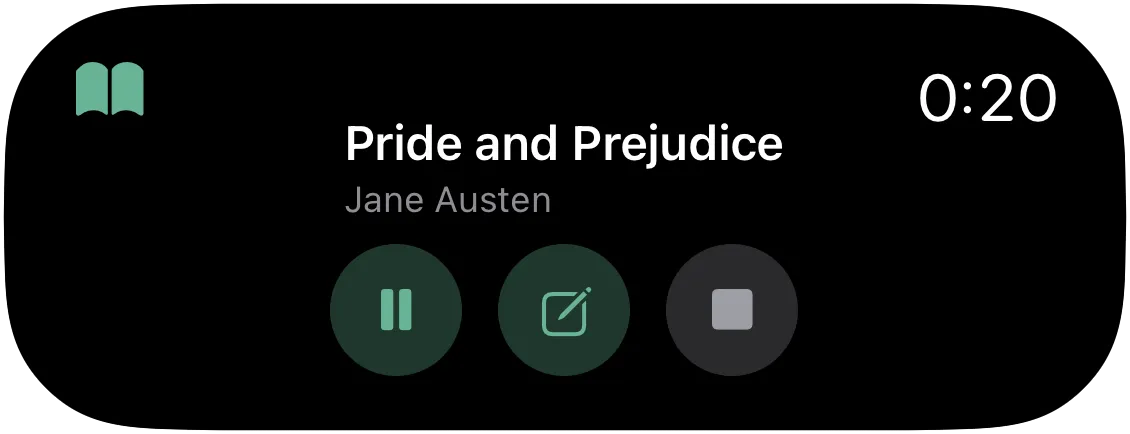
Check the session without reopening the app.
Look at the week, not just today
A short session still counts. Reading history and statistics help you see when you found time for books and how your reading adds up over several days. If a daily goal helps, start with a number of minutes that fits your day.
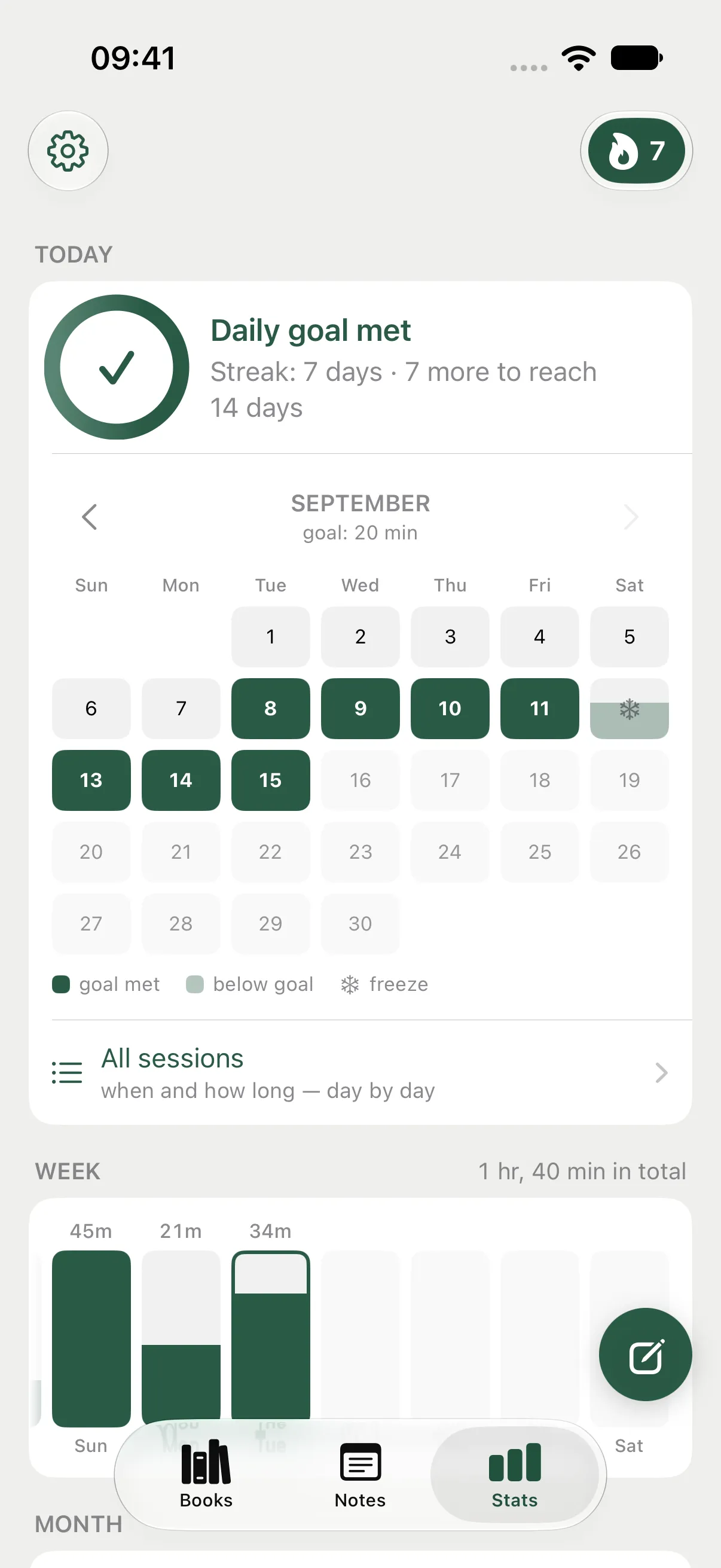
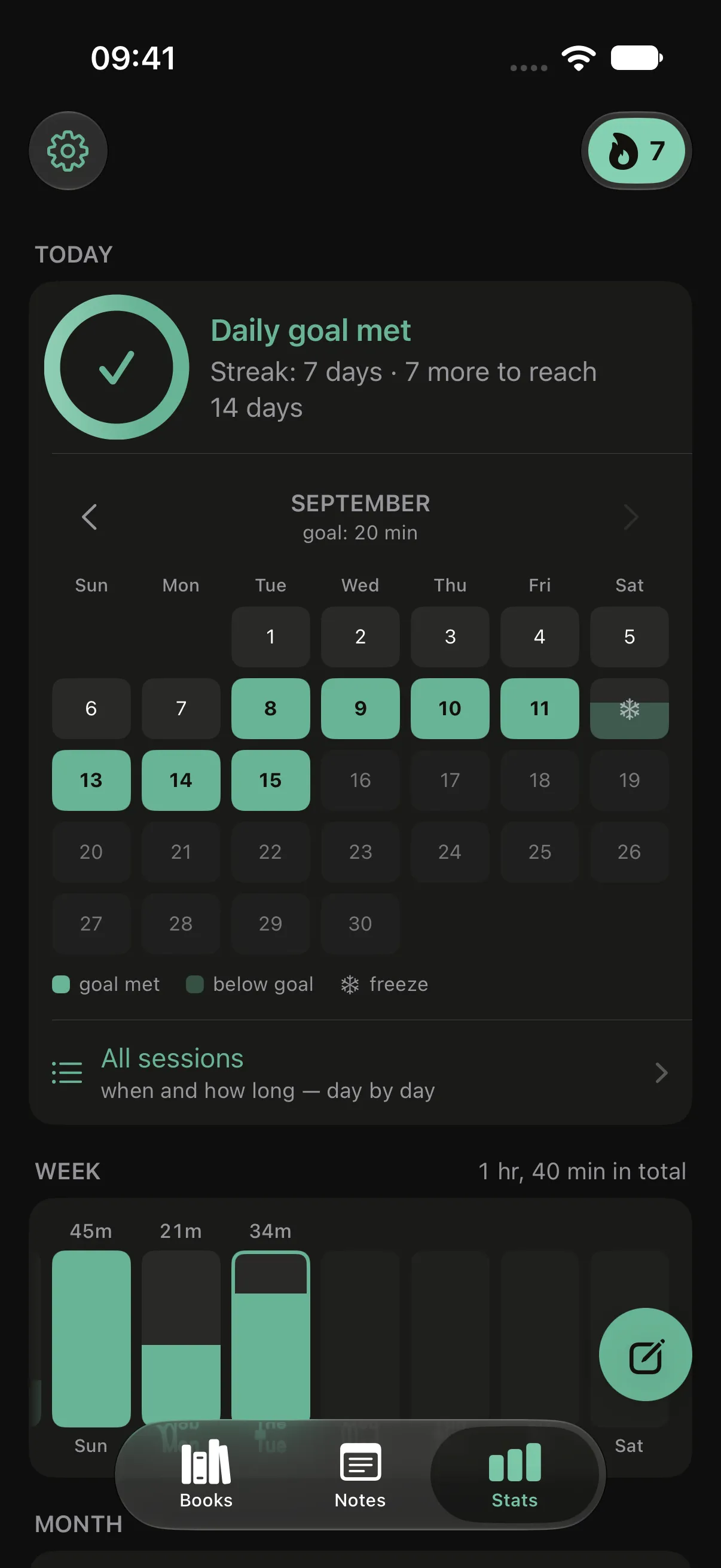
Your reading time, collected across sessions.
What works offline?
The free version holds up to 5 books and includes 20 page scans with text recognition in total. Deleting a note does not restore a used scan. Notes and the timer work offline without an account; sync is free after signing in. A subscription removes the book and scan limits and unlocks your full stats history, year in review and folder export.
Pagetime is coming to iPhone and Android. You can leave your email below to hear when it is available. In the meantime, a stopwatch and a note are enough to begin.
This independent guide is published by Pagetime and is not authorized, sponsored or endorsed by Apple Inc. or Google LLC.
Keep reading
Reading sprints, explained
A reading sprint is a short, focused burst of reading with a timer. How long to make it, what to do before and after, sprinting with others and keeping count with Pagetime.
Read the guide
How to track your reading
What is worth counting when you track your reading, from books and pages to time. A setup that takes less than a minute a day, on paper or on your phone with Pagetime.
Read the guide
How to build a daily reading habit
Make reading part of your day with a small daily goal, a fixed moment and a book within reach. Practical steps, plus how Pagetime tracks goals and streaks.
Read the guide